Blog
How to Manage SpeechExec 11.5 Licence Activations For Multiple Users
By Ryan Gaudet•
•
3 min read
This post was published 6 years ago.
Products, software versions, or vendor processes mentioned here may have changed. For current dictation hardware and software, browse our catalog or contact us.
Looking for a modern cloud dictation solution?
vScription is our Canadian-hosted dictation platform — built for healthcare, legal, and enterprise teams. Includes speech-to-text, AI-powered summarization, secure transcription routing, and no per-seat software to manage.
As you may know, with the release of version 11.5 of Philips SpeechExec Pro software, Philips changed their activation process. You now need to have a Speech profile account to activate new licence and the licences are a 2 year subscription term.
We've had some feedback from some IT departments that manage sites using SpeechExec Pro where they have issues activating the software using their "master" email address.
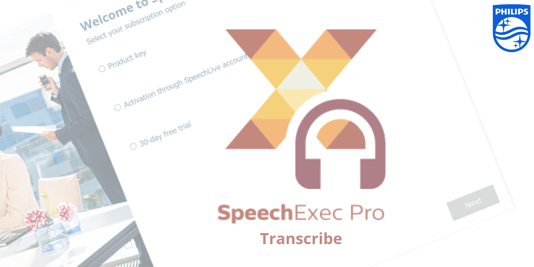
When you install SpeechExec Pro on a new workstation (SpeechExec Pro Transcribe or SpeechExec Pro Dictate), you need to download and run the installer. Once the installation is complete, you will be prompted to activate the software and will be presented with a screen as shown below;
 Here are some notes on the activation options;
Product Key: This is the traditional way of activating. When you purchase the software, we send you the key usually within 30 minutes and you use this key to activate
Activation through SpeechLive Account: If you have an active SpeechLive account, you can log in with this information and that will allow you to activate the software
30-day free trial: If you don't have a Speech Profile account, you can choose this and get a 30-day trial. Note that if you have already registered your account, you may not be able to use the trial option
The next step for any of these options (Or after you have entered your product key) is to either login with your Speech Profile account or create one. This is where some of our clients are having issues.
Many sites like to have a single email address for software renewals so that a "master" user knows when renewals are up. This could also be the IT administrator. This is the process to activate multiple workstations with a single email address. Follow these steps for activations after you have already registered a SpeechProfile;
Here are some notes on the activation options;
Product Key: This is the traditional way of activating. When you purchase the software, we send you the key usually within 30 minutes and you use this key to activate
Activation through SpeechLive Account: If you have an active SpeechLive account, you can log in with this information and that will allow you to activate the software
30-day free trial: If you don't have a Speech Profile account, you can choose this and get a 30-day trial. Note that if you have already registered your account, you may not be able to use the trial option
The next step for any of these options (Or after you have entered your product key) is to either login with your Speech Profile account or create one. This is where some of our clients are having issues.
Many sites like to have a single email address for software renewals so that a "master" user knows when renewals are up. This could also be the IT administrator. This is the process to activate multiple workstations with a single email address. Follow these steps for activations after you have already registered a SpeechProfile;
Here are some notes on the activation options;
Product Key: This is the traditional way of activating. When you purchase the software, we send you the key usually within 30 minutes and you use this key to activate
Activation through SpeechLive Account: If you have an active SpeechLive account, you can log in with this information and that will allow you to activate the software
30-day free trial: If you don't have a Speech Profile account, you can choose this and get a 30-day trial. Note that if you have already registered your account, you may not be able to use the trial option
The next step for any of these options (Or after you have entered your product key) is to either login with your Speech Profile account or create one. This is where some of our clients are having issues.
Many sites like to have a single email address for software renewals so that a "master" user knows when renewals are up. This could also be the IT administrator. This is the process to activate multiple workstations with a single email address. Follow these steps for activations after you have already registered a SpeechProfile;
Multi-License activation…single email account i.e. ITSupport@Lawfirm.com
- Install SpeechExec Pro software on the computer
- Launch the software and select Subscription option “Product Key”
- Enter the Product key (license key)
- You are presented with “Log in with SpeechProfile”
- As you have not associated this license key with the IT SpeechProfile yet, select Register
- Enter the Email address and password previously created for the IT SpeechProfile
- Click Next
- Privacy and Consent will appear select all or at least the first two.
- Click Start License Registration
5. Existing Speech Profile Found dialog will appear.
- Assign registration to existing SpeechProfile is selected by default.
- Click Next
6. SpeechExec license activation
- “License activated”
- Click OK
- SpeechExec Pro software launches